Digital Work Instructions Without Code: Software, Hardware and Rollout
What digital work instructions should include, what you need on the software and hardware side, and how to go from one workstation to a full line without a long IT project.
14.10.2026
·
8 min read
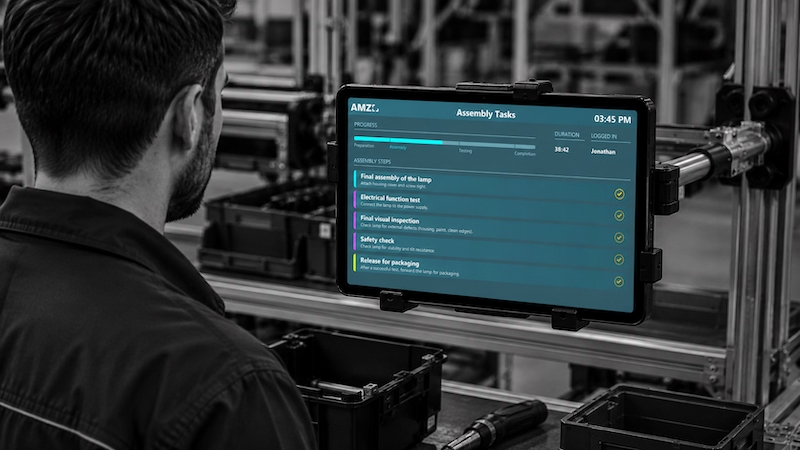
- Digital work instructions show each assembly or operating step on a touchscreen at the workstation, confirmed by the operator and linked to live order and machine data.
- Good instructions show one step per screen, load the right variant from the current order and record OK/NOK checks as they happen.
- With Peakboard Designer, process engineers maintain the instructions themselves, without programming.
- On the hardware side, plan for kiosk mode, local operation without internet and stations that keep running if one fails.
- Start with one station that has a real problem, then roll out station by station.
Digital work instructions are step-by-step assembly or operating instructions shown on a screen at the workstation instead of on paper. Each step has text, images or drawings. The operator confirms it with a tap, and the instructions can pull in live data such as the current order, the material list or the machine status. You can build them without writing code: a low-code tool for the content, a display or industrial PC at each station, and a connection to the systems that already hold your order and machine data.
This guide covers what good digital work instructions contain, what you need on the software and hardware side, and how to go from one workstation to a full line without a long IT project.
Why paper and PDF instructions stop working
Paper binders and PDFs on a shared PC work as long as the product rarely changes. They break down when:
- Variants multiply. The operator has to find the right page for the right variant, and the wrong page is one flip away.
- Changes don't reach the line. Engineering updates a step, but the printed copy at station 4 is three revisions old.
- Nobody knows what was done. Paper doesn't tell you which step took long, where parts were rejected, or that material ran out.
- Training takes too long. New and temporary workers need someone standing next to them until they know the sequence.
Digital instructions solve these because the screen always shows the current version, it shows only the steps for the current order, and every confirmation becomes a data point.
What good digital work instructions include
Not every station needs all of this, but these are the building blocks worth planning for:
- One step per screen. Short text, an image or technical drawing, and a clear "done" button. Operators should never have to scroll.
- Order and variant context. The instructions load from the current order, so the operator sees the steps for the variant in front of them, not a generic list.
- Material list. Which parts and how many, ideally checked against availability.
- Quality checks in the flow. OK/NOK confirmation at the steps where it matters, recorded at the moment it happens rather than written down afterwards.
- Time and progress. How long the order has been running and how far along it is, visible to the operator and the supervisor.
- A way to report problems from the same screen. Missing material or a fault gets reported right there, for example by email or Microsoft Teams, instead of someone walking to find a team lead.
- Language switching. On mixed teams, the same instructions in more than one language.
Which data the operator needs at each station, from ERP order data to PLC signals, and how feedback flows back into SAP, is covered in our article on digital operator guidance.
The software side: build or configure?
There are three common routes:
- Custom development: good for very specific requirements and large internal IT capacity. The catch: every change to a step becomes a ticket, and it is slow to adapt when products change.
- Dedicated work-instruction platform: good for pure instruction authoring at scale. Often licensed per user and cloud-based, so check how it connects to your PLCs, ERP and existing hardware.
- Low-code shop floor platform: good when you want instructions plus live data from machines and ERP on the same screen. Make sure process owners, not only IT, can actually edit it.
If you want process engineers to maintain the instructions themselves, three questions sort the options quickly:
- Can someone without programming skills add a step, change an image or add a product variant? Ask for a demo where they do it live.
- Does it connect to the data you already have? Order data usually lives in the ERP (often SAP), machine data in the PLC via OPC UA or MQTT. If connecting these is a separate integration project, the instructions will stay static.
- How is it licensed? Per user gets expensive on a line with three shifts and temporary staff. Per device is easier to plan: one licence per screen, any number of operators.
The hardware side: what goes at the workstation
Hardware is where many projects stall, because the software demo ran on a laptop and the shop floor is not an office. Plan for these points:
- Touch display. Operators confirm steps with a tap, often with gloves. Pick a size that is readable from the working position, and mount it where it doesn't block the work.
- A computer that runs the application. Either an industrial PC dedicated to the screen or an existing Windows PC, tablet or industrial display you already have at the station.
- Kiosk mode. The station should show the instructions and nothing else. No desktop, no browser tabs, no updates popping up mid-shift.
- Network and local operation. Instructions must keep working if the internet connection drops. Prefer a setup that runs on the local network and doesn't depend on a cloud service for every step.
- Isolation. If one station fails, the others should keep running. A central server that all stations depend on is a single point of failure.
- IT security. Your IT team will ask how the devices are managed, updated and secured on the plant network. Have the answer before the pilot, not after.
Two ways to do it with Peakboard
- Peakboard Box: a dedicated industrial PC for one display. It mounts on a DIN rail, connects directly to machines and sensors, runs the application in a secured kiosk mode, and works fully on-prem without an internet connection. It runs Windows 10 IoT Enterprise, so IT can join it to the domain and manage it like any other network device. The licence is included: one Box, one licence.
- BYOD (Bring Your Own Device): if the station already has a touchscreen, a Windows PC, tablet or industrial display, the same application runs there. Also one licence per device.
In both cases the stations run independently. If one fails, the rest keep going.
From first station to full line
You don't need a big-bang rollout. A sequence that works:
- Pick one station with a real problem: many variants, frequent errors or long training times. That gives you something to measure before and after.
- Start from a template, not a blank screen. Adapt an existing assembly-instruction or worker-assistance template to your steps.
- Connect one data source. Usually the order list, so the right instructions load automatically. Machine data can come later.
- Run it with the operators for two weeks. Their feedback on step size, image quality and button placement matters more than anyone's in the office.
- Roll out station by station. Reuse the same application and swap the content per station.
Beyond instructions
Once a screen sits at the workstation, it can do more than show steps: counting finished parts, running orders, Andon calls when something goes wrong, or a digital shift log. Planning for that from the start is a good reason to choose a platform that handles both instructions and live production data, rather than a tool that only does one.
How Peakboard handles digital work instructions
Peakboard is a low-code platform for shop floor applications. For work instructions it offers:
- Templates for digital assembly instructions and a worker assistance system with material lists, time tracking and OK/NOK checks, 100% customisable.
- Drag and drop in Peakboard Designer, with AI support from Peakbot. Process owners add steps, tasks or products themselves, without programming, and preview them with live data.
- Over 100 data sources, including a native SAP connector, OPC UA and MQTT, so orders and machine data appear on the screen without a separate integration project.
- Peakboard Box or BYOD at the workstation, both 100% on-prem.
- Per-device pricing: one licence per display, unlimited users on that device.
The worker touch HMI template adds order handling and part counting at the same station.
Download Peakboard Designer for free and use it for as long as you like.
Peakboard Solution
Digital Assembly Instructions
Every assembly step on the touchscreen, with status updated automatically. Try the template with your own data.

What are digital work instructions?
Step-by-step instructions shown on a screen at the workstation instead of on paper. Each step combines text, images or drawings, is confirmed by the operator, and can use live data such as the current order or machine status.
Do I need programming skills to create digital work instructions?
With a low-code platform like Peakboard, process engineers build and change steps by drag and drop in Peakboard Designer. Programming is only needed if you build the system from scratch.
What hardware do I need for digital work instructions?
A touch display at each workstation and a computer to run the application. That can be a dedicated industrial PC such as the Peakboard Box or a Windows PC, tablet or industrial display you already have. It should run in kiosk mode and keep working without an internet connection.
Can digital work instructions connect to SAP or my PLCs?
Yes, if the platform has connectors for them. Peakboard includes a native SAP connector and supports OPC UA and MQTT, among more than 100 data sources.
How long does it take to introduce digital work instructions?
Starting from a template, the first station is up and running quickly. The rollout across the line then follows station by station.
Digital work instructions vs. a worker assistance system: what's the difference?
The terms overlap. Work instructions usually mean the step-by-step content. A worker assistance system adds material lists, time tracking, quality checks and problem reporting around those steps.