Distribute Siemens S7 Values to Many Applications with Peakboard Hub Flows
With Peakboard Hub Flows, you can read a Siemens S7 over a single connection and distribute its values to any number of Peakboard applications via Hub Variables.
04.11.2026
·
5 min read
- Siemens PLCs support only a small number of incoming connections. A Hub Flow can read the S7 over a single connection.
- In the example, the Hub Flow runs every 10 seconds and writes each value to its own Hub Variable.
- Applications subscribe only to the Hub Variables they need and are notified of every change.
- In the example, the variables IsRunning, RunningSpeed and ErrorMessage come from data block 4 of the S7. The data block and offsets depend on the PLC program in use.
The applications subscribe to the variables and receive every change as soon as the Hub Flow writes it to the Hub Variables. Hub Flows are automated processes that run on their own in the background in Peakboard Hub. Part 1 of the series on storing MQTT data explains how a Flow project is structured.
One PLC, many applications
The S7 holds the information on what a machine is doing right now: whether it is running and what caused a fault. Many Peakboard applications often need this information at the same time, for example on Peakboard Boxes at different places in the factory. However, Siemens PLCs support only a small number of incoming connections. If every application opens its own connection to the S7, the PLC can become overloaded.
The principle with Hub Variables
- The Hub Flow is the only one to connect to the S7 and reads the data it needs. This keeps the PLC at a single connection.
- The Hub Flow turns the raw data into the values the applications need.
- Each value is stored in its own Hub Variable and overwrites the previous value there.
In the example, the Hub Flow repeats these steps every 10 seconds. Each Peakboard application subscribes only to the Hub Variables it needs. When the Hub Flow writes a new value, all applications subscribed to that variable are notified. In the application, a status indicator can then switch from green to red, for example, or an email can go out to the person in charge. This architecture follows the publish-subscribe pattern.
Step by step
1. Create the Hub Variables
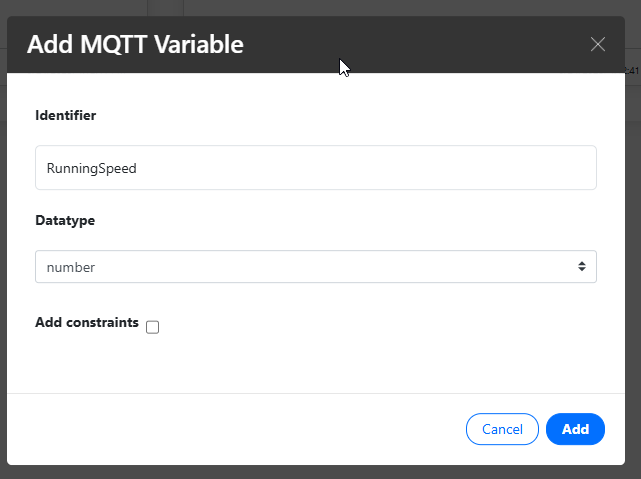
In Peakboard Hub, you can create three Hub Variables. In the “Add MQTT Variable” dialog, you can set the name (Identifier) and the data type (Datatype) for each one:
IsRunning(Boolean): whether the machine is runningRunningSpeed(Number): the speed while the machine is running, otherwise 0ErrorMessage(String): the error message when there is a problem, otherwise empty
2. Connect the variables in the Flow project
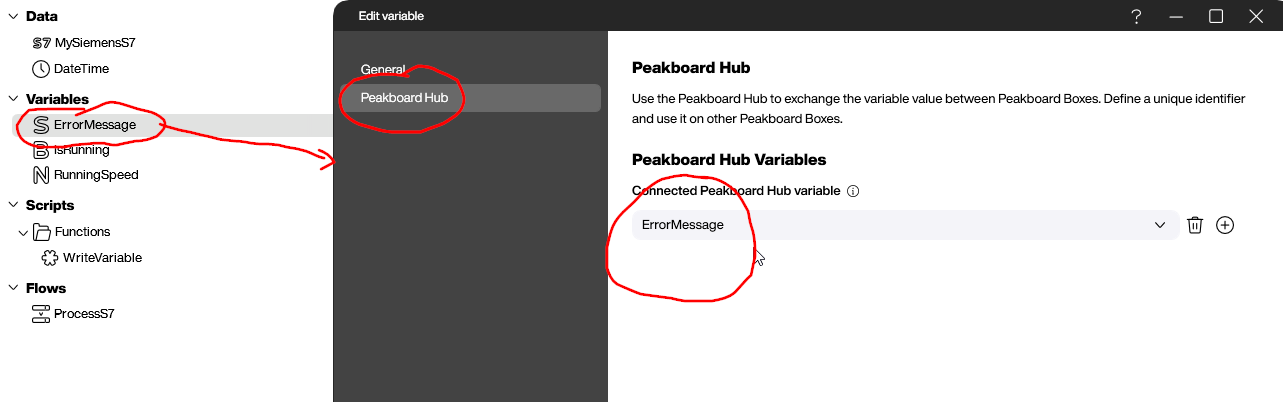
In Peakboard Designer, you can create a new Flow project and add three local variables with the same names and data types. You can then connect each one to its Hub Variable: edit the variable, open the “Peakboard Hub” tab and select the matching Hub Variable under “Peakboard Hub Variables”. Whenever a local variable changes, the Hub Flow automatically updates the corresponding Hub Variable.
3. Create the S7 data source
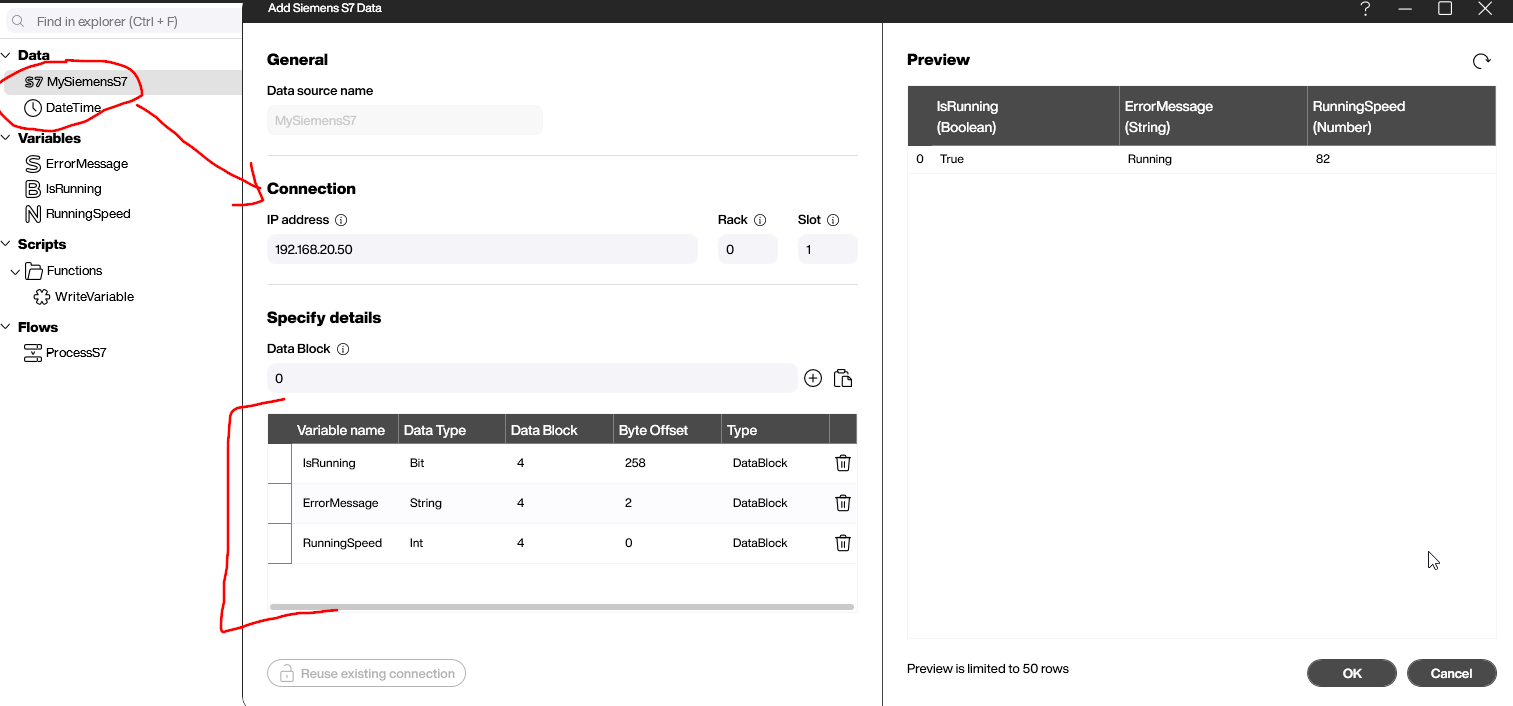
To connect to the PLC, you can use the standard Siemens S7 data source. In the example, it is called MySiemensS7 and set to rack 0 and slot 1, which is common for many S7 PLCs. Rack, slot, data block and byte offsets depend on your PLC and PLC program. In the example, the three variables are in data block 4:
IsRunning: data type Bit, byte offset 258ErrorMessage: data type String, byte offset 2RunningSpeed: data type Int, byte offset 0
4. Write the values with a function
You can build the WriteVariable function with Building Blocks. With the block “set variable … from list MySiemensS7 … get row 0”, you can set each local variable to the value from the first row of the data source. Because the local variables are connected to Peakboard Hub, this automatically updates the Hub Variables as well.

5. Set up and upload the Hub Flow
For the ProcessS7 Hub Flow, you can set up a periodic trigger of 10 seconds and add two steps: “Reload” for the MySiemensS7 data source and “Run function” for the WriteVariable function.
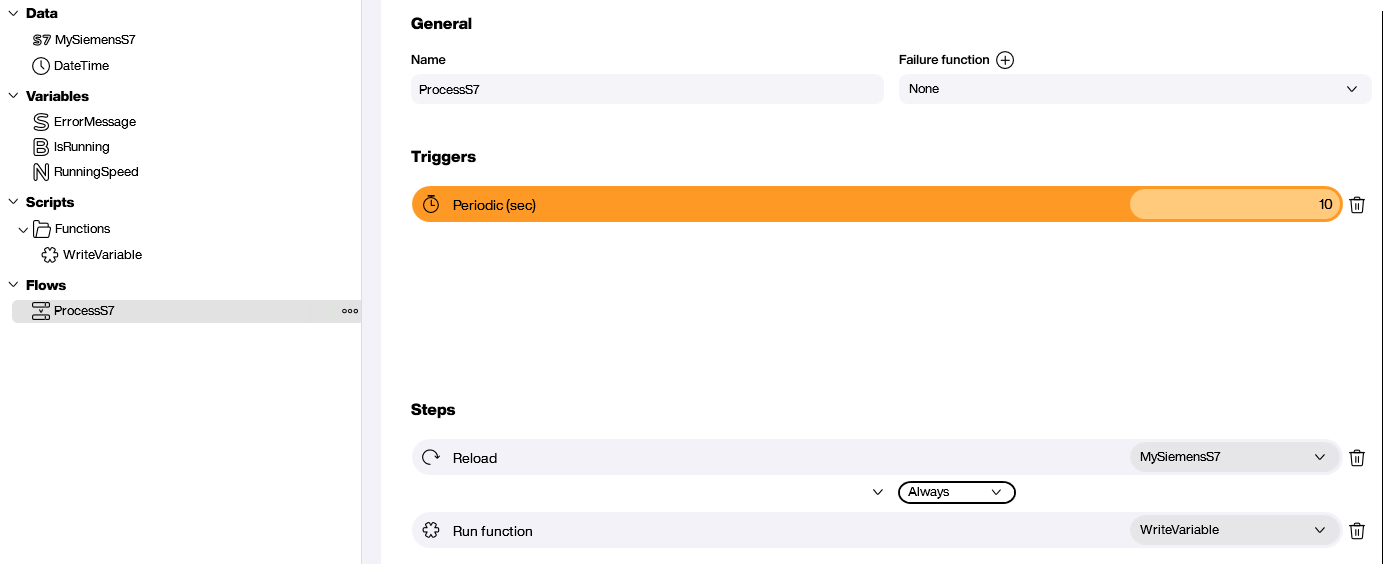
After the upload to Peakboard Hub, the Hub Flow runs right away, and you can see the current S7 values in the Hub Variables.

Show the values in an application
In a Peakboard application, you can create three variables and bind them to the Hub Variables. They work like regular variables and update automatically whenever the corresponding Hub Variable changes. To display the values, you can use an icon with conditional formatting for IsRunning, a gauge for RunningSpeed and a text control for ErrorMessage that shows “Running” when there is no error.

This way, you can decouple a PLC from the applications that use its data. It also works with a PLC like the S7 and its limited number of connections. When caching SAP data in a Hub list, the applications reload the data at regular intervals. Here, the applications pick up every change as soon as the Hub Flow writes it to the Hub Variables.
Further reading
You can download the Flow project SiemensS7Distribution.pbfx and the application SiemensS7Consumer.pbmx and open them in Peakboard Designer. The Siemens S7 data connection page explains how to connect an S7 in Peakboard Designer.
Free trial
Try Peakboard Hub for free
Hub Flows are included without limits in the 60-day Peakboard Hub trial, so you can rebuild the example from this article right away.

Why use a Hub Flow for the S7?
Siemens PLCs support only a small number of incoming connections, and many direct connections can overload the S7. With a Hub Flow, a single connection to the S7 is all you need.
What is a Hub Variable?
A variable in Peakboard Hub that holds a current value. Applications can subscribe to it and are notified as soon as the value changes.
How often does the Hub Flow read the S7 in the example?
Every 10 seconds. On each run, it reloads the MySiemensS7 data source and runs the WriteVariable function, which updates the variables.
How do the applications find out about new values?
The applications subscribe to the Hub Variables and are notified as soon as the Hub Flow writes a new value.