Peakboard LINK: Run Peakboard Applications in the Browser
How to use Peakboard LINK to start a Peakboard application from Peakboard Hub On-Premise in the browser, license devices and work with instances.
27.10.2026
·
5 min read

- Peakboard LINK is part of Peakboard Hub On-Premise: the application runs as a process on the server and is opened and operated in the browser.
- Every Peakboard application runs as a Peakboard LINK without changes, started via “Run as Peakboard LINK” in the Peakboard Hub file management.
- Access is granted through a device license or by signing in with a user license. Every Peakboard Hub includes one license.
- Everyone in an instance sees the same interface. For independent work, there are further instances with their own URL.
- Data sources need to be reachable from the Peakboard Hub server.
With Peakboard LINK, you open a Peakboard application in any browser while it runs as a process on the Peakboard Hub On-Premise server. In five steps, you bring an existing application from Peakboard Designer to a tablet, PC or smartphone.
What you need
- Peakboard Hub On-Premise on your own server. Every Peakboard Hub already includes one license for Peakboard LINK, so you can get started right away.
- A Peakboard application as a pbmx file. Any existing application is suitable, and scripts and data sources stay the same.
- A device with an up-to-date browser that reaches Peakboard Hub on the network.
The Peakboard Hub server connects to the data sources, because that is where the application runs. A database, an OPC UA server or an SAP system therefore needs to be reachable from the Peakboard Hub server. For the device with the browser, the connection to Peakboard Hub is all it takes.
Step 1: Upload the application to Peakboard Hub
The pbmx file needs to be in the Peakboard Hub file system. There are two ways to get it there: you upload it in the Files area with “Upload application”, or you save it directly from Peakboard Designer to the Peakboard Hub file system.
Step 2: Start it as a Peakboard LINK
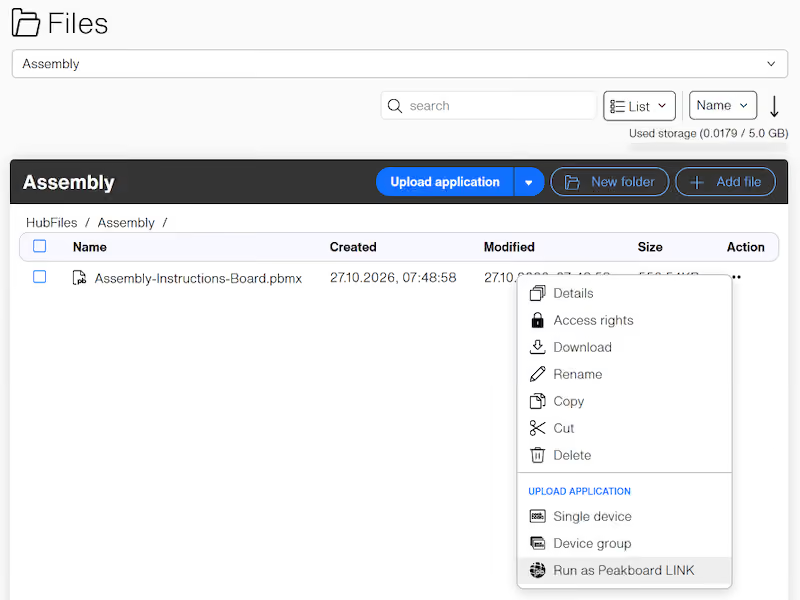
In the Files area, open the action menu next to the pbmx file and select “Run as Peakboard LINK”. The application then appears in the “Peakboard LINK” area of Peakboard Hub.
Step 3: Open the link or QR code
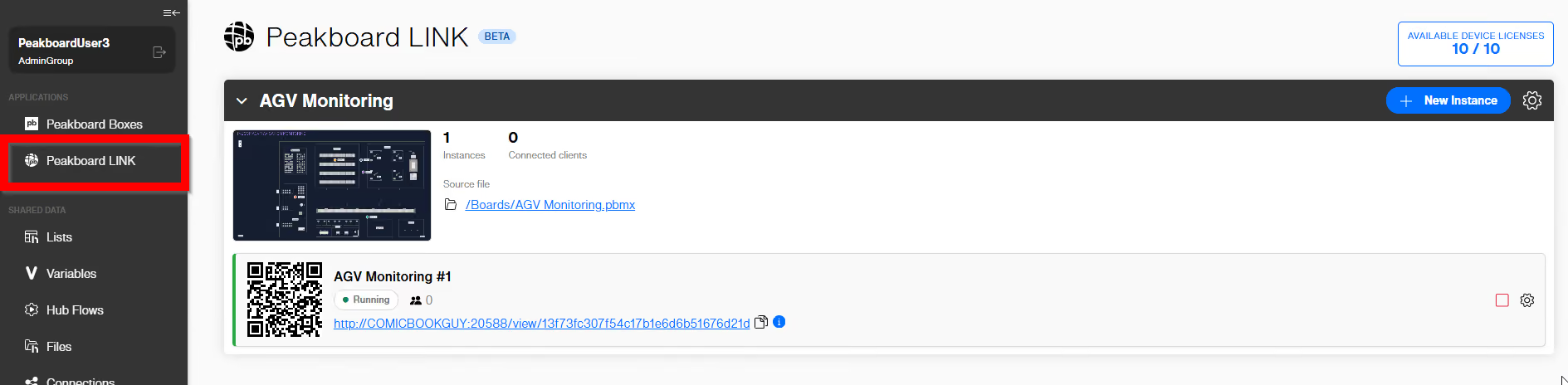
In the “Peakboard LINK” area, you find a URL and a QR code for every running instance. You open the URL in any browser and scan the QR code with a smartphone or tablet.
Step 4: Activate a device or a person
On first access, the browser shows a license notice. There are two ways to activate access:
- Device license: the device itself is licensed. The license notice shows a screen code to identify it.
- User license: a person signs in with their Peakboard Hub account, which has a user license for Peakboard LINK assigned.
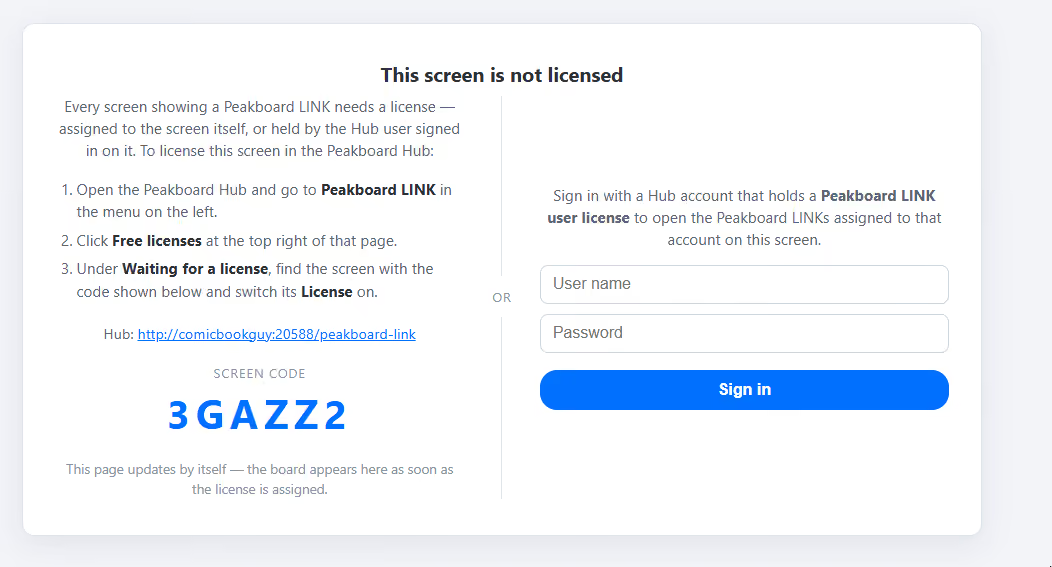
For a device license, click the available device licenses in the top right corner of the “Peakboard LINK” area. The dialog lists all devices that have opened an application via Peakboard LINK. Use the screen code to find the right device and switch on its license. The application then appears in the browser automatically.

Step 5: Add more instances
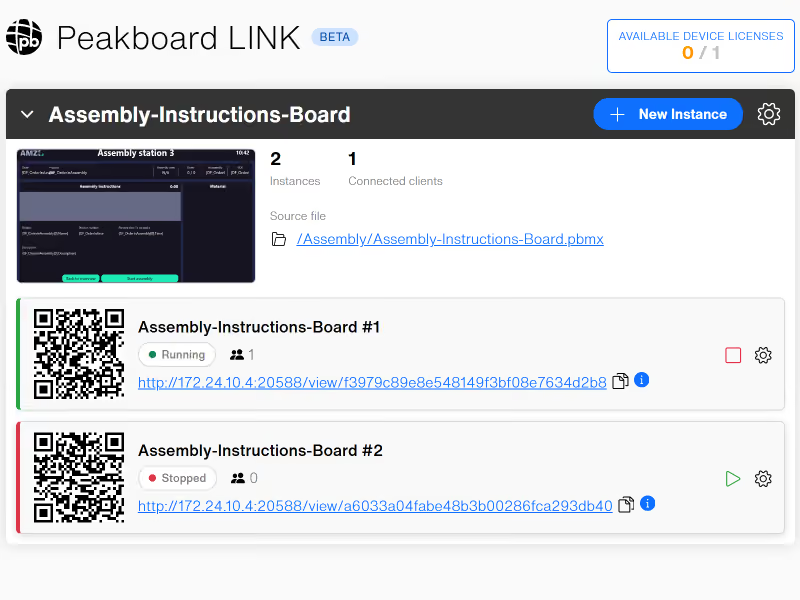
Each instance runs as its own process on the Peakboard Hub server, comparable to a Peakboard Box. Everyone with the same instance open therefore sees the same state: if someone switches the view, enters text or selects a list entry, it is visible everywhere immediately.
For independent workstations, use “New Instance” next to the application to add more instances, for example one per line or per person. Each instance has its own URL and its own QR code. You can see in Peakboard Hub how many devices are currently connected for each application and each instance.
Examples of use
- Assembly: on the tablet at the assembly station, workers call up the current orders and work steps. The click demo shows what this looks like.
- Devices without Windows: whether iPad, Raspberry Pi or a low-cost tablet, a browser is all Peakboard LINK needs.

You can find all technical details in the Peakboard LINK documentation.
Click demo
Peakboard LINK in action
On the product page, you can find a click demo and further information such as technical details or licensing.

What is Peakboard LINK?
Peakboard LINK is part of Peakboard Hub On-Premise. The Peakboard application runs as a process on the Peakboard Hub server and can be opened and operated in any browser.
Can I use existing Peakboard applications with Peakboard LINK?
Yes. Every Peakboard application runs on the Peakboard Box, with BYOD or as a Peakboard LINK. Scripts and data sources stay the same.
What happens when several people open the same instance?
Everyone sees the same interface, and every input is visible to everyone immediately. To work independently, use “New Instance” to add further instances with their own URL and QR code.
How is Peakboard LINK licensed?
There are device licenses for a specific device and user licenses for people with a Peakboard Hub account. Every Peakboard Hub includes one license, and the Peakboard Hub On-Premise trial comes with unlimited licenses.