
Your Peakboard applications in the browser
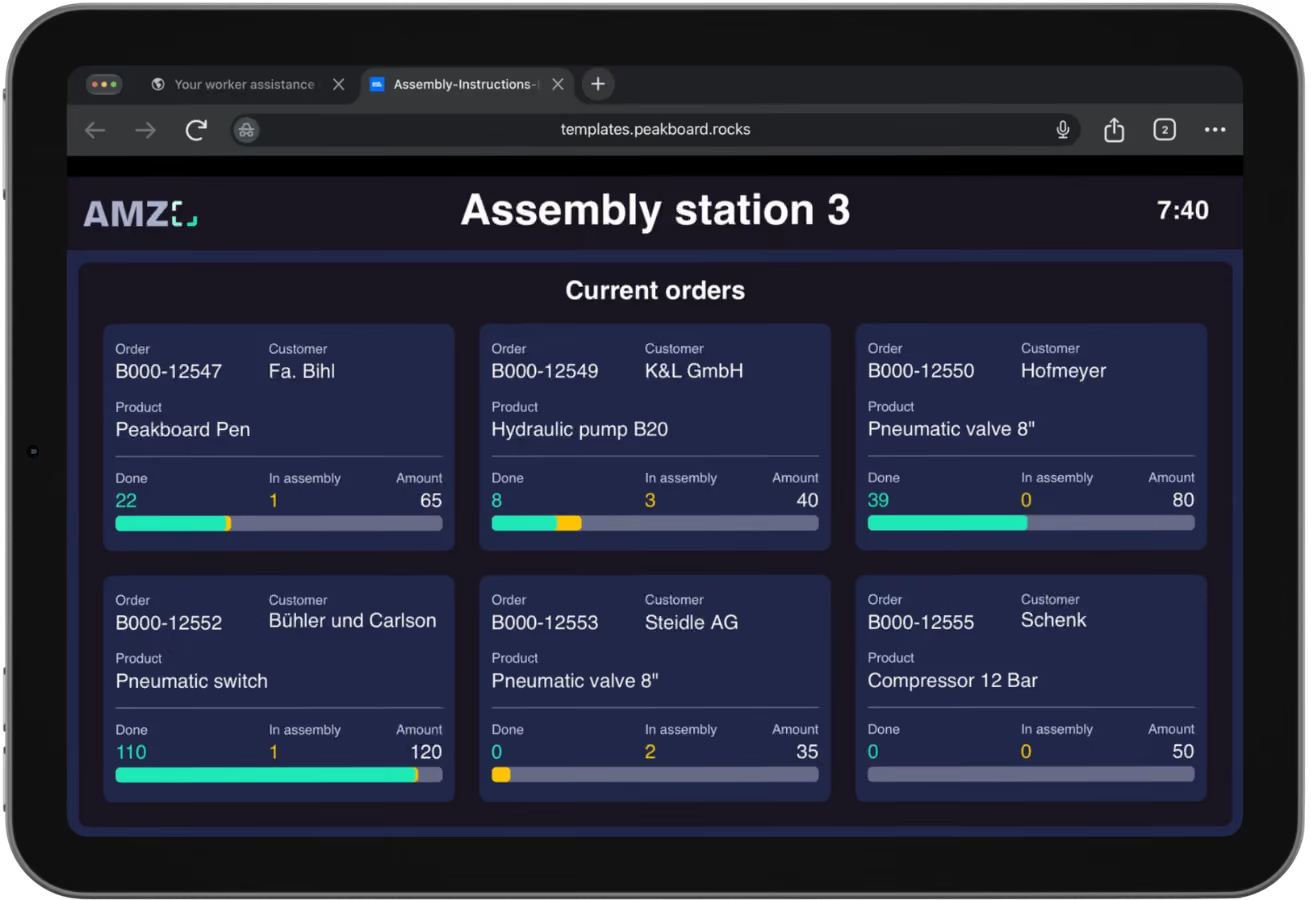
With Peakboard LINK, Peakboard applications run in the browser: you can open them via URL on any tablet, PC or smartphone and operate them in full. They are run centrally in Peakboard Hub On-Premise on your own server.
Live demo on your own device: scan the QR code or open it in the browser.
Three steps
from the file to the browser.
With Peakboard LINK, you can start the applications you built in Peakboard Designer directly from Peakboard Hub. On your devices, a browser is all you need.
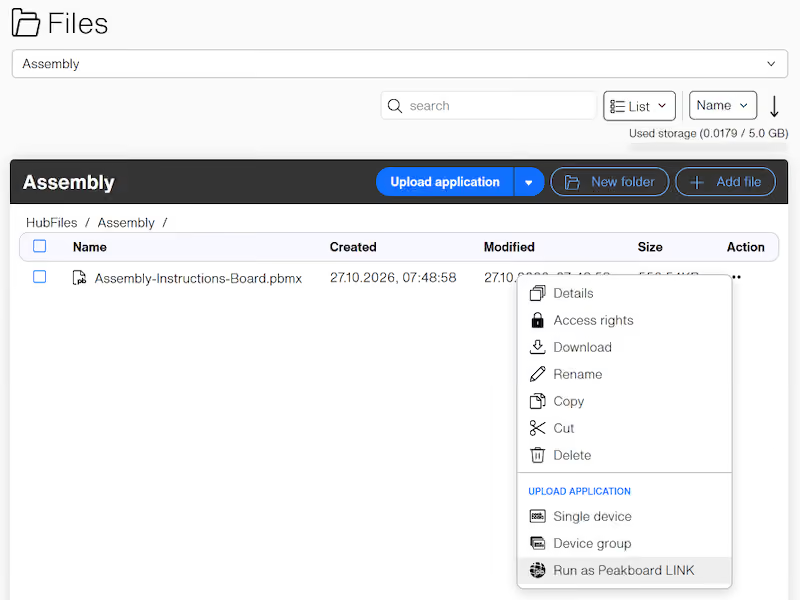
Start as a Peakboard LINK
Upload the application you built in Peakboard Designer to the file management of Peakboard Hub.
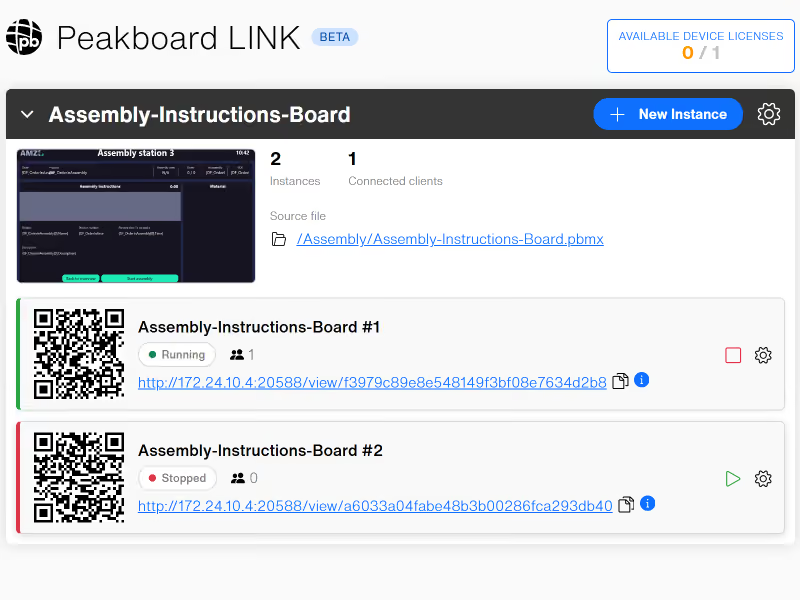
Create instances
Under the “Peakboard LINK” menu item, you can create several instances, each with its own URL, for example one per line or workstation, and assign your licenses.
Open in the browser
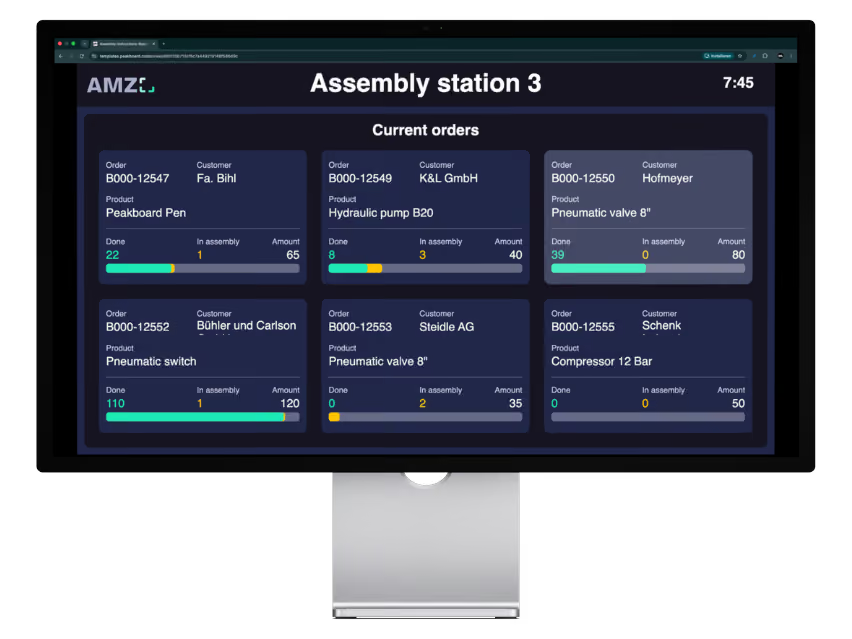
Use the URL or the QR code to open the application in the browser and operate it there in full.
Everything you need to know about Peakboard LINK
With Peakboard LINK, the application runs in Peakboard Hub on your server. The browser is used only for display and input. Only Peakboard Hub is connected to your data sources.
Peakboard Hub On-Premise
Peakboard LINK is a feature of Peakboard Hub On-Premise from version 2.3.0.0. Peakboard Hub runs as a Windows service on Windows Server 2016 or later, no IIS required. The setup installs SQL Server Express as the database; alternatively, an existing SQL Server 2017 or later can be used.
Server resources
Peakboard Hub requires at least 4 CPU cores, 32 GB RAM and a 128 GB SSD. How many instances can run in parallel depends on the size of the applications. CPU load and memory of each instance are visible in Peakboard Hub at all times.
Licenses
Every Peakboard Hub On-Premise includes one license for Peakboard LINK. More licenses are available as an add-on pack of 5 licenses. Every device that displays an application needs either a device license or a signed-in person with a user license. A device license covers all instances on that device and suits permanently mounted screens. A user license suits people who switch between several devices. A person with a user license can only be signed in on one device at a time. Both license types can be combined.
Project file
You use the familiar project file from Peakboard Designer. Hardware on the device, such as printers, scales, scanners or I/O modules, can be used via Peakboard LINK to a limited extent, depending on the device. USB devices usually work; serial devices such as printers may need an extension, just like on the Peakboard Box.
Devices and browsers
Tablets, PCs, smartphones and displays with an up-to-date browser. A network connection to Peakboard Hub is all it takes, internet access is not required. Nothing needs to be installed on the device.
Network segmentation
Only the Peakboard Hub server needs access to SAP, databases and controllers. The devices only need access to Peakboard Hub, and the OT zone stays closed to them.
Ports
The ports are defined when Peakboard Hub is installed and can be changed later. By default, devices reach Peakboard Hub via HTTP on port 20588 or via HTTPS on port 20589; HTTPS requires a matching certificate. The setup creates the corresponding inbound firewall rules on the server.
Encryption
HTTPS can be enabled during setup or later in the Peakboard Hub Configurator. The certificate comes from the server’s certificate store or is added as a .pfx file.
Peakboard Hub address
Peakboard Hub usually detects the address at which devices reach it by itself. If needed, you can define the address under Settings › Hub Endpoints: a DNS name, an IP address with or without port, or an HTTPS URL. This lets you run Peakboard Hub behind a DNS alias or reverse proxy and control how far access extends.
Approving new devices
A new device first shows a screen code. The application is displayed only once a device license is assigned to the device in Peakboard Hub. The device is recognized by an identifier stored in the browser: a second browser, a private window or another Windows user account on the same PC counts as a separate device. The license stays with the device until it is released again in Peakboard Hub.
Signing in with a user license
With a user license, the person signs in with their Peakboard Hub account. This is their Active Directory account or a local Windows account, depending on how Peakboard Hub is set up. Only the Peakboard LINKs assigned to their user group are shown. Signing in on a second device signs them out of the first.
Access to an instance
On a device with a device license, anyone who opens the URL of an instance can view and operate the application without signing in. In addition, each instance can be protected with a five-digit access code, which the device stores after the first entry. If the code is regenerated, it has to be entered again on all devices.
Management permissions
Who may create and manage Peakboard LINKs is defined through user groups with the permission “Can add and manage hosted Peakboard LINKs”. Administrators always have this permission.
Instances
Each instance can be started, stopped and renamed individually in Peakboard Hub. New instances of the same application run independently of the existing ones.
Several devices on one instance
All devices with the same instance open show the same state. If someone switches the view or enters something, it changes on all devices. For independent workstations, a separate instance is created for each.
Variables per instance
Variables whose values are defined at upload can be adjusted for each instance, for example for the line or the workstation. Changed values take effect in the running application immediately.
Updates
When a new version of the application is uploaded, the instances keep running with the previous version for now. “Update project” applies the new version. The instances restart and the displays are briefly interrupted. This lets you schedule updates for shift changes or maintenance windows.
Monitoring
For each instance, the connected devices are visible, including the last seven days, as well as CPU load and memory in real time. The device list shows when each device was last connected.
Logs
The logs of each instance can be filtered by level, exported and cleared. The latest entries remain visible even for stopped instances.
Availability
Peakboard Hub runs as a Windows service, starts automatically with the server and restarts itself after an error. Running instances also start again after a server restart. If Peakboard Hub is briefly unreachable, the connection on the devices is restored automatically.
Add licenses to Peakboard Hub
Every Peakboard Hub On-Premise already includes one license for Peakboard LINK. More licenses are available in packs, as device licenses or user licenses.
For Peakboard Hub On-Premise
Device license: one device, any number of people
User license: one person, any device
Both license types can be combined
During the trial with unlimited licenses for Peakboard LINK.
Frequently asked questions
With Peakboard LINK, your Peakboard application runs in the browser, for example on the tablet at the workstation, the PC in the office or a smartphone, and is fully operable there. You open it simply via URL. It runs centrally in Peakboard Hub On-Premise on your own server.
Peakboard LINK runs on any device with an up-to-date browser, whatever the operating system: Windows PCs and tablets, Android tablets, iPad and iPhone or a Raspberry Pi. All the device needs is the browser.
For Peakboard LINK, you need Peakboard Hub On-Premise on your own server. On the device, an up-to-date browser that reaches Peakboard Hub on the network is all it takes. The device runs the application without any installation.
Yes. Every Peakboard application runs unchanged on the Peakboard Box, with BYOD or via Peakboard LINK. You upload the .pbmx file to Peakboard Hub and start it there with “Run as Peakboard LINK”.
With Peakboard LINK, each instance of the application runs once on the server. Everyone who opens the same URL sees and operates the same interface: if someone switches the view, it changes for everyone. For independent workstations, you start additional instances in Peakboard Hub, each with its own URL and QR code.
With Peakboard BYOD, the Peakboard Runtime runs on your own Windows PC, so the application works directly on that device, including with a connected scanner, camera or I/O module. With Peakboard LINK, the application runs on the Peakboard Hub server, and all the device needs is a browser, on an iPad, Android tablet or Raspberry Pi as well. You can combine both in the same plant.
Peakboard Web Access shows a screenshot of a Peakboard Box in the browser that refreshes at an adjustable interval. Through it, you can change variables and lists, swap files and trigger shared functions. With Peakboard LINK, the application itself runs in the browser and you operate it live and in full.

Feel free to tell me what you would like to use Peakboard LINK for, or ask me your questions about licenses and setup. I look forward to hearing from you.